Step 1 – Confirm you’re on Android TV / Google TV
-
Press Home on the remote.
-
Look for Apps and Google Play Store.
If you do not have the Play Store, your Kogan model may not be Android/Google TV and you’ll need a Chromecast/Google TV dongle or similar. (Many Kogan models are Android/Google TV, but not all.)
Kogan’s own quick start guides refer to signing in with a Google Account to use Play Store on Android/Google TV models.
Step 2 – Sign into the TV with a Google account (needed for Play Store)
-
Go to Settings (gear icon).
-
Go to Accounts & Sign-In (or Accounts).
-
Add/sign into your Google account.
This is only for installing apps from Play Store.
Step 3 – Install the Jellyfin app on the TV
-
Open Google Play Store.
-
Search for: Jellyfin
-
Install “Jellyfin for Android TV”.
-
Open the app.
Google’s Android TV help page also shows the normal flow for installing/managing apps in Play Store.
Step 4 – Add the DGTV server address
-
In the Jellyfin app, choose Add Server (or Select Server / Switch Server → Add).
-
In Server Address, type:
jelly.dg.church
-
If it asks for protocol, choose HTTPS (recommended).
If it doesn’t ask, just enter the address as above.
Step 5 – Sign in (NO sign-up)
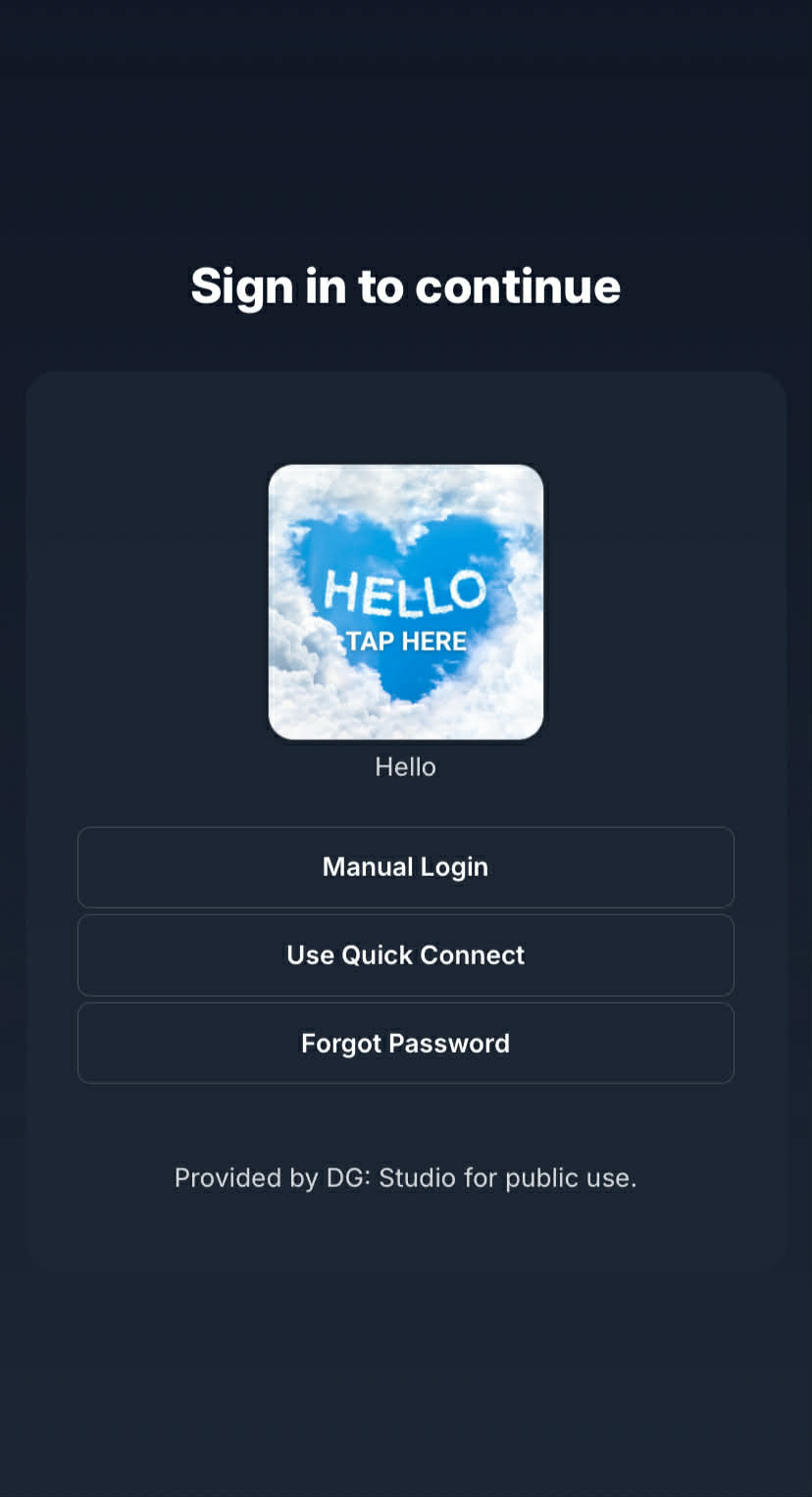
When the login screen appears, either tap on Hello or “Use a password” and enter:
-
Username: Hello
-
Password: leave it blank (do not fill in)
-
Select Sign In / Login
That’s it – there is no account creation step.